Free · no account needed
Stream overlay kit
A full overlay for StreamElements and three full-screen scenes for the start and the end of your stream. Built for a Tower stream and running on one since October, now free for every Tower creator. Your picture carries your name only.
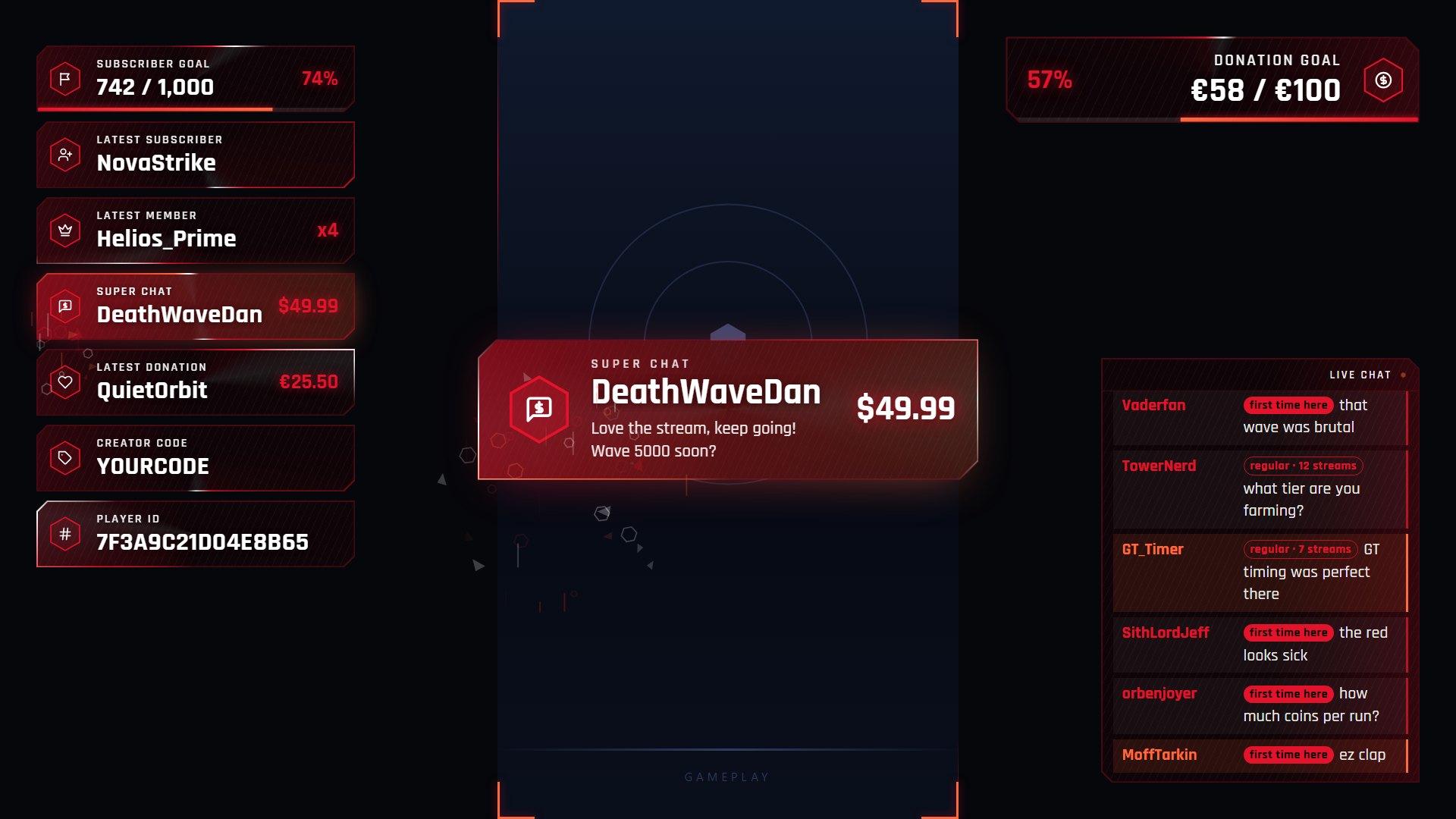
1 · The overlay
One StreamElements custom widget. Everything is changed in its settings panel, you never touch code. Names, amounts and chat come from your own StreamElements account; nothing else is connected.
- Subscriber goal742 / 1,000 with a bar, filled from your real count
- Donation goalyour own title, target and currency, this stream or this month
- Alertsa pop-up, a sound and a particle burst for subscribers, members, super chats and donations
- Cardslatest subscriber, member, super chat and donation, your creator code and player ID
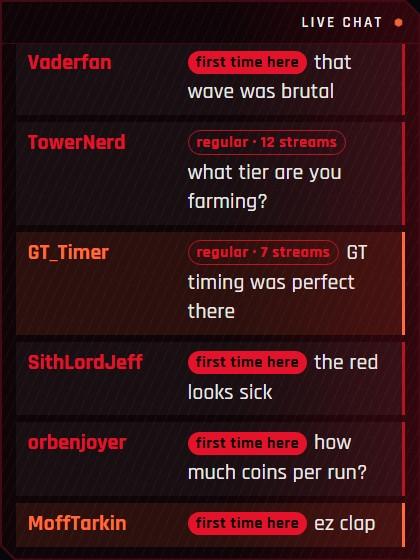
- Chat windowyour live chat in the same look, with badges for first-timers and regulars
- Voicesuper chats and donations read out loud, through your own word filter, from an amount you set
- Game framecorner marks around your gameplay, portrait, square or landscape
- Four colour setsImperial Red, Neon Blue, Tower Gold, Terminal Green, or your own colours
creator-kit-streamelements.zip · the 4 widget files
Set it up, once, about 5 minutes
- 1Unzip
Right-click the zip → Extract all. Four files:
widget.html,widget.css,widget.js,fields.json. - 2New overlay in StreamElements
Streaming tools → My Overlays → New overlay, 1920 × 1080. Then + → Static / Custom → Custom widget.
- 3Paste the four files
Select the widget → Open editor. In each tab (HTML, CSS, JS, FIELDS) select all, delete, paste the file of the same name. Leave DATA alone, click Done.
- 4Make it cover the screen
With the widget selected: position X 0, Y 0, size W 1920, H 1080, then Save. A smaller box cuts off the frame and the pop-ups.
- 5Add it to OBS
Copy the overlay link (chain icon), add a Browser source at 1920 × 1080 above your game, and tick Control audio via OBS so the alert sounds reach your stream.
This is not StreamElements’ “Import” page, that one is for other services. You paste the four files into a custom widget as above. The test buttons in the widget settings play every alert, so you can see it all before you go live.
2 · Your scenes
Starting soon, ending soon and thanks for watching, in the same look. They run in OBS by themselves, no StreamElements needed. Type what you want, add your logo and a background, and the preview follows. The download has all three scenes, already set up.
stream-scenes.zip: starting-soon.html, ending-soon.html, thanks.html. Made in your browser, nothing is uploaded.
Add them to OBS
- 1
Unzip it somewhere you will find it again. Your pictures sit next to the scene files: keep them together.
- 2
In OBS, in your “Starting Soon” scene: + → Browser, tick Local file, pick
starting-soon.html, size 1920 × 1080. The same for the other two. - 3
Want to change a word later? Open the file in Notepad: the settings are at the very top, in plain words. Save, then right-click the source in OBS → Refresh.
The thanks scene is for the end of a video. Its two rectangles and the circle stay empty on purpose: YouTube draws its own end-screen buttons there, which you place in YouTube Studio for the last 5 to 20 seconds.
3 · Questions
The chat window stays empty
The overlay reads your chat through StreamElements, so your YouTube chat has to be connected there. Check that first in your StreamElements account; the overlay cannot reach YouTube by itself.
I changed a setting and OBS still shows the old one
Press Save in StreamElements. If OBS does not pick it up by itself, right-click the browser source → Refresh. The same goes for a scene file you edited.
What do the chat badges keep, and how do I delete it?
For each person who writes in your chat: the last day they wrote and on how many days they have written. No messages, no other channels. It is stored in your own StreamElements account, nowhere else, for up to 3,000 people. To forget everyone: widget settings → 6 · Chat → Forget all chatters, then refresh the source in OBS. To stop counting, untick the badges there.
Do the scenes need StreamElements?
No. They are plain files on your computer and work offline. The overlay can also switch into the same scenes from its own settings (Scene), if you prefer to keep everything in StreamElements.
Does it work outside OBS?
Anything with a browser source: OBS Studio and Streamlabs Desktop both do.
No sound in my stream
Open the browser source properties in OBS and tick Control audio via OBS. The StreamElements editor preview usually blocks sound, so test it in OBS.